 ) or right click and select "Remove All Terminated" to clear
up the debug box.
) or right click and select "Remove All Terminated" to clear
up the debug box.Finishing It Off
Now we know how to step through, into and out of methods in your programs. This can make debugging your applications very easy as you can see each step of your program as it runs, while Eclipse constantly shows you the values of your variables.
A Few points to remember:
You can add multiple breakpoints in your program, and just use the "Play"
icon to set the program running until it hits the next breakpoint. You can
also use the step buttons.
Breakpoints can be added and removed while the program
is running.
Breakpoints are removed by right-clicking the blue breakpoint dot and selecting "Remove Breakpoint". You can also remove all breakpoints by switching to the "Breakpoints" view (one of the tabs under the "Variables" view), then right-clicking inside the view and selecting "Remove All". The Breakpoints view shows all breakpoints in the program.
Breakpoints can also be Enabled and disabled, so that the breakpoints remain in place, but do not stop the program. You can do this by right clicking on the breakpoint dot beside your source code, or by right clicking the breakpoint in the breakpoints view.
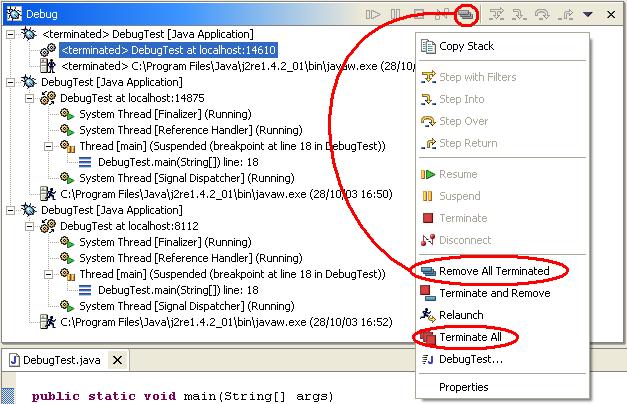
Java allows you to run your program multiple times simultaneously (by hitting
the run or debug button, then hitting it again). This can become a little confusing,
and can also cause problems because you have multiple copies of your program
running taking up processor time and computer memory. If you do end up with
this situation, you can right click in the "Debug" view, and choose "Terminate
All". This will stop all current instances of your program. You can also use
the minus button () or right click and select "Remove All Terminated" to clear
up the debug box.
You can stop your program at any time by pressing the stop button either in the debug view or in the console (output) view.
You can also change variables in the Variables view (right click on variable) while the program is paused. Be careful though, this can interfere with the normal execution of your program.
All queries and comments are welcome. If you have any problems or queries about this tutorial, please email Trevor Ian Peacock at trevorp-itc129@peacocktech.com
Your input is what drives this site.
|